

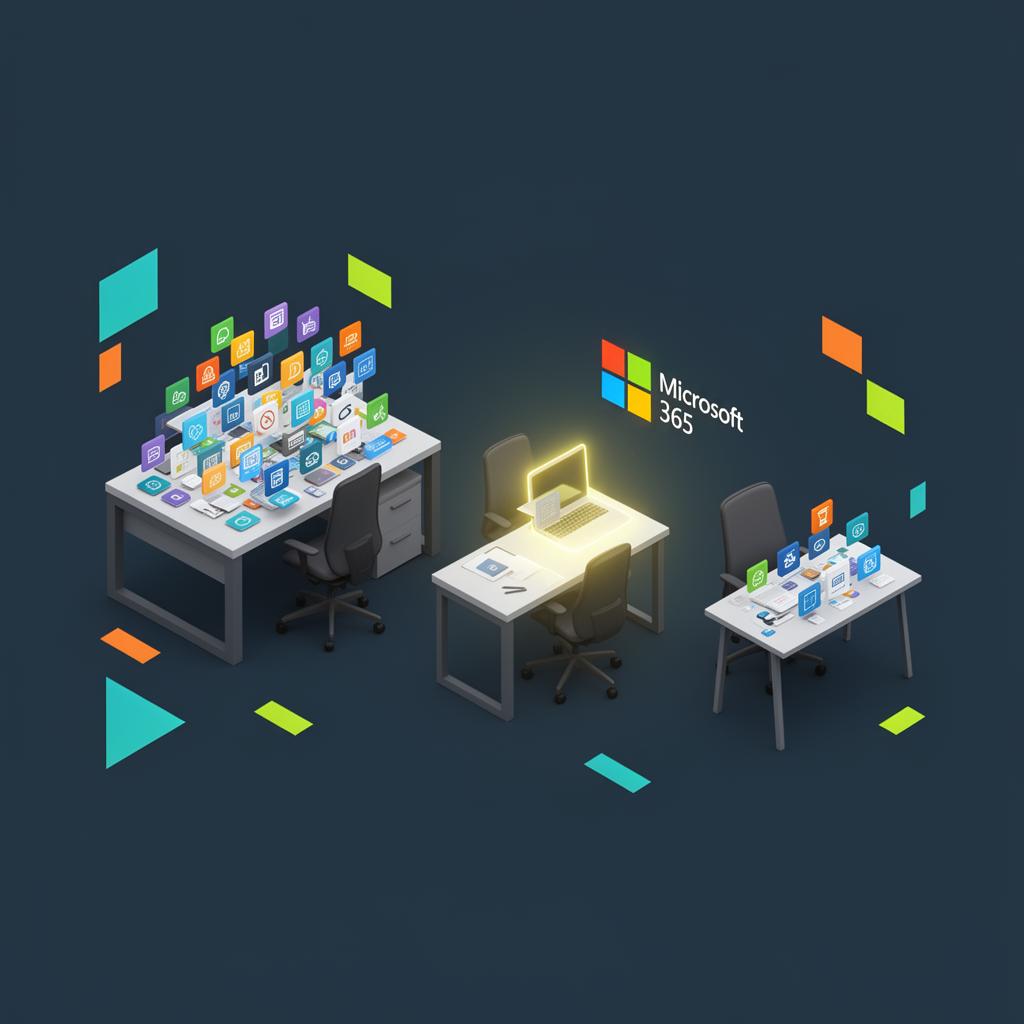
Microsoft 365 renewals are often treated as a formality—just re-sign the same agreement and move on. But that passive approach can cost your organization hundreds of thousands in over-licensing and underused features. Right-sizing your Microsoft 365 licenses before renewal gives you leverage, clarity, and the opportunity to realign your licensing strategy with today's business needs.
And the stakes are higher than ever. In recent years, Microsoft has introduced stricter contract terms—locking customers into 12- or 36-month commitments with limited ability to reduce license counts mid-term. Monthly flexibility now comes with a premium, and early cancellations face steep penalties. At the same time, internal dynamics like hybrid work, restructuring, or M&A activity often leave licenses mismatched, unused, or auto-renewing in the background. Without a proactive review, you could end up committing to years of unnecessary spend.
Why Right-Sizing Matters
- Most environments are over-licensed. Teams change. Roles shift. And old licenses quietly stay active.
- Microsoft pricing has increased. A stagnant approach means you're paying more for the same or less.
- Usage ≠ value. If employees aren't using what you're paying for, it's wasted budget.
In response to shifting work environments and cost pressures, Microsoft has tightened licensing flexibility through its New Commerce Experience (NCE), raising prices and limiting downgrade options mid-term. At the same time, internal changes like hybrid work, layoffs, or acquisitions often leave licenses unused or misaligned. Without a fresh look, you could be stuck renewing an agreement that no longer fits—locking in waste for another 12 to 36 months.
Step 1: Analyze Real Usage
Microsoft's built-in reports only go so far. They show surface-level activity, not meaningful license alignment. To uncover true needs, you'll need a combination of internal review and/or a third-party tool or service.
Look for:
- Inactive users still holding licenses
- License mismatches, like users with E5s only using core Office apps
- Underused services like Microsoft Defender, Teams Phone, Viva, or Power BI Pro
Pro Tip: Export user-level data across a 90-day window to spot underutilization patterns.
Step 2: Identify and Eliminate Shelfware
Over time, even the most well-managed organizations accumulate unused software—also known as shelfware. This includes:
- Duplicate licenses assigned across departments or business units
- Unnecessary add-ons that quietly renew year after year
- Legacy bundles from prior licensing models (e.g., EMS, O365-only environments)
Action:
- Consolidate license types where possible
- Deactivate unused SKUs
- Create license pools to reassign unused seats dynamically
Step 3: Reassess Based on Business Changes
Your licensing needs are not static. Whether you've undergone:
- A reorg or departmental restructuring
- Layoffs or hiring surges
- A shift to hybrid work or bring-your-own-device (BYOD) policy
- Acquisition or divestiture activity
…those changes must be reflected in your licensing footprint.
Pro Tip: Review licensing by business unit and user role—not just by individual user.
Step 4: Build a Role-Based Licensing Strategy
Not everyone needs an E5 license. Mapping job roles to license types creates long-term cost efficiency.
Common pairings:
- Executives / Power Users → E5
- Standard Office Users → E3
- Field or Seasonal Workers → F3
- Kiosk / Shared Terminals → Device-based or F-series licenses
Bonus: Use this mapping to guide provisioning during onboarding/offboarding and avoid overspending.
Step 5: Enter Negotiations with Data
Once your environment is cleaned up and rationalized, you're ready to renew strategically. Microsoft negotiates differently when you show your work.
With a right-sized view, you can:
- Push for volume-based tier discounts
- Lock in multi-year pricing stability
- Drop unneeded bundles or add-ons
- Establish price protections tied to license tiers
Pro Tip: Avoid surprises—set your internal renewal timeline at least 6 months before expiration.
What Right-Sizing Delivers
| Benefit | Impact |
|---|---|
| Lower costs | Eliminate waste and reduce total spend |
| Better fit | Match licenses to actual roles and usage |
| Stronger negotiating power | Come to the table with data, not guesses |
| Reduced risk | Avoid noncompliance, duplicate usage, and shelfware |
| Smarter planning | Adapt to business changes without overpaying |